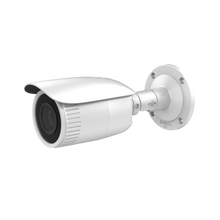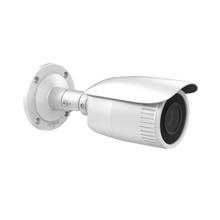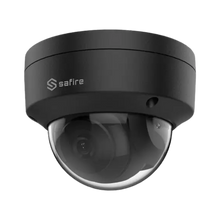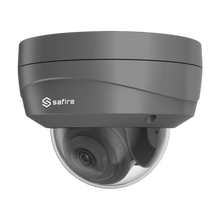
Setting Up an IP Camera for Day and Night – Sharp Images Around the Clock
A good security camera delivers reliable images by day and by night. Yet we often see poor night-time footage or overexposed images in bright sunlight. In this article, we explain how to set up an IP camera correctly for optimal performance at any time of day. We use examples from Uniview and Dahua, two brands you'll find at UMATECH.
1. Correct placement: 80% of your image quality
Mounting tips
- Mount cameras at a height of 2.5–3 m for both overview and detail
- Avoid direct light sources in the frame (lamps, street lighting)
- Don't point the camera at windows or mirrors
- Use wall brackets to avoid blind spots
Always check that night vision isn't disrupted by reflections or obstacles.
2. Setting resolution and bitrate
More pixels isn't always better. A 4MP camera often strikes a good balance between sharpness and storage space.
Recommended settings
- Resolution: 2688 × 1520 (4MP)
- Frame rate: 20 fps
- Bitrate: VBR (variable bitrate), max. 4096 kbps
Keep in mind: a bitrate that's too high means large files and a slower network; too low means blocky images.
3. WDR and exposure
WDR (Wide Dynamic Range) keeps both the dark and the bright parts of the image clearly visible. Ideal for entrances or windows.
Settings
- Turn WDR on when there's backlight
- Adjust brightness and contrast manually if needed
On Dahua and Uniview cameras, you can also set WDR to switch on automatically in difficult lighting conditions.
4. Night vision and IR settings
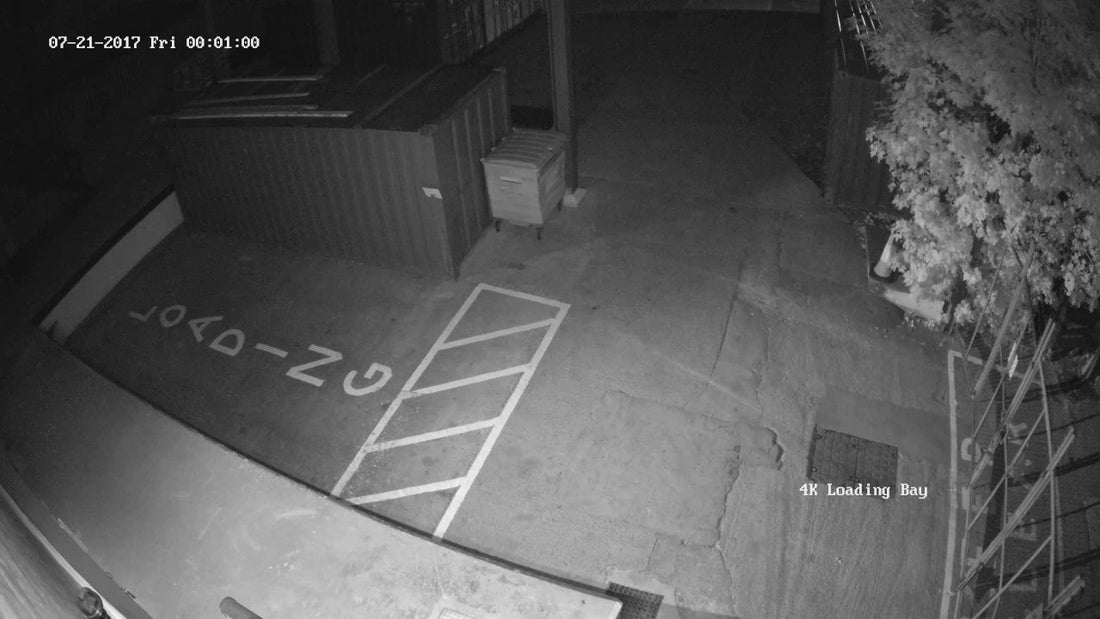
In low light, cameras switch to infrared (IR) mode. It's important that this works properly without reflections.
Settings to check
- IR LEDs on/auto
- IR intensity moderate or normal
- Day/night mode set to "Auto"
- Enable Smart IR for stable contrast with moving objects
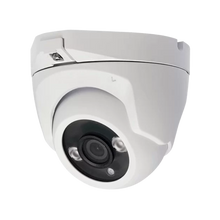
Note: with dome cameras that have a glass bubble, IR light can reflect. A turret model is a better choice for night-time images.
5. Motion detection and recording
Smart motion detection saves you from watching hours of empty footage.
Tips
- Define the detection area (exclude swaying trees or traffic)
- Set sensitivity to 60–70%
- Only enable push notifications for truly important areas
On selected models, Uniview and Dahua also support AI-based detection of people and vehicles.
6. Connecting to an NVR and PoE
Connect your camera to an NVR via a PoE switch, or directly to a PoE NVR.
UMATECH supplies, among other things:
- Uniview and Dahua NVRs with AI
- PoE switches (with 4, 8 or 16 ports)
- UPS backup so that footage is still recorded during a power outage
Make sure your camera and NVR are on the same network. Use DHCP for the initial setup, then assign a static IP address.
7. Installation support from UMATECH
At UMATECH you'll find:
- Turret, dome and bullet cameras from Uniview and Dahua
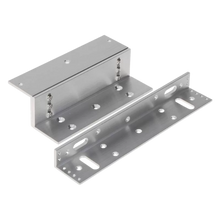
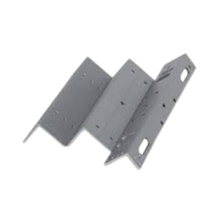
- Wall and pole brackets
- NVRs, PoE switches and UPS units
- Configuration and installation service on request
We're happy to advise you on the settings that best suit your location and situation.
UMATECH – sharp images, day and night.